Brushes and painting
A tool chooses the kind of operation; Tool Set chooses a group and preset within it. Start with a built-in brush, then change only the controls needed for your next mark.
These concise guides follow the current web editor. Native controls may differ while the ports are being completed.
What you'll learn
- Select a tool, group and preset.
- Adjust size, opacity and flow.
- Use Eraser, Blend and Liquify on the intended layer.
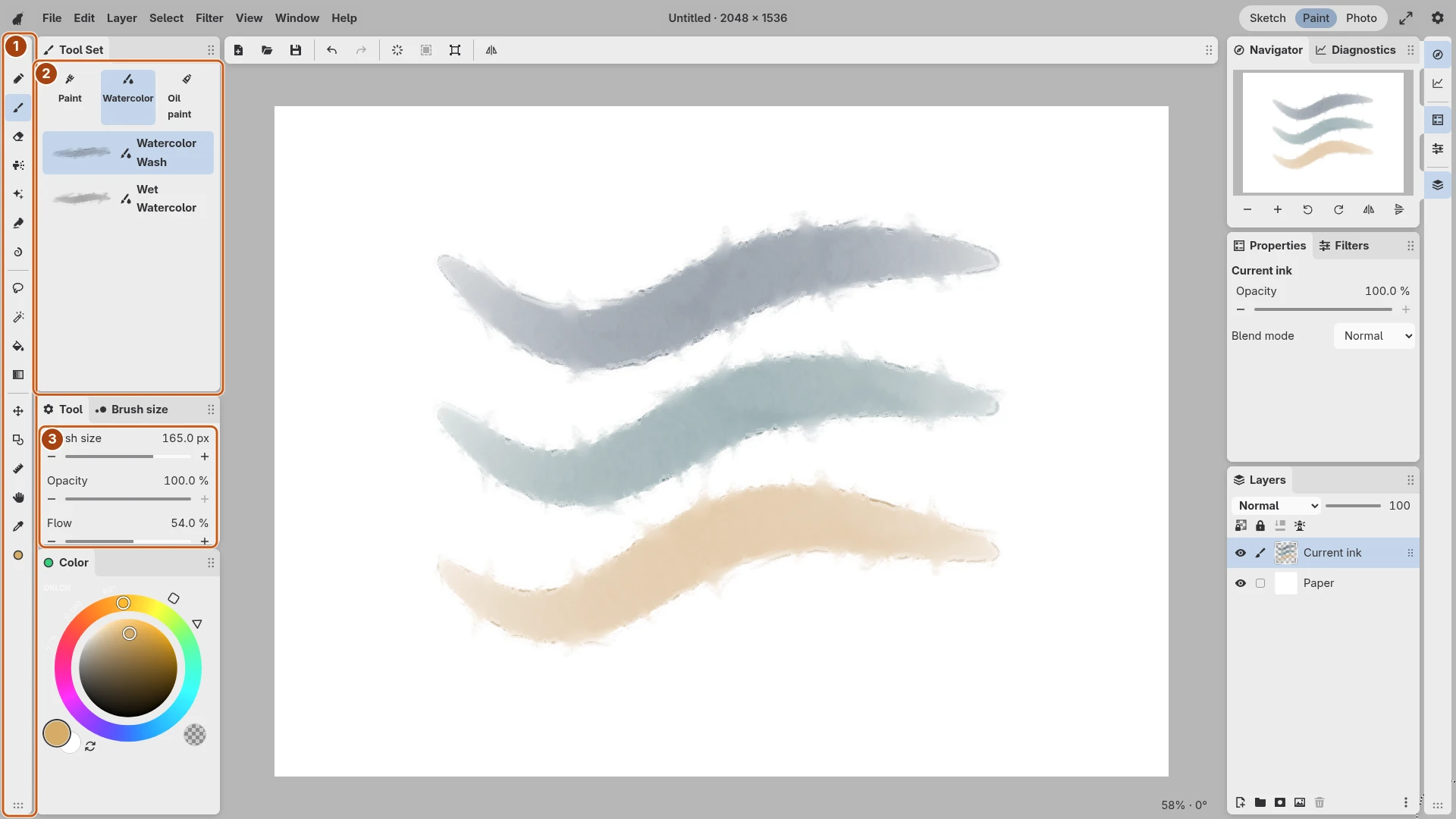
Open the image to inspect the controls. Numbered outlines identify the controls described in the caption.
Choose a tool and preset
Use Pen or Pencil for lines, Brush for paint, or Airbrush for softer deposition. Tool Set changes with the active tool. Brush includes Paint, Watercolor and Oil groups; select a group, then a named preset such as Watercolor Wash.
Choose the destination in Layers before drawing. A selected mask receives visibility edits instead of ordinary paint, so check its thumbnail when a stroke behaves unexpectedly.
Control the mark
Use Tool to adjust size and opacity. The neighboring Brush size tab provides reusable sizes. Pressure response depends on the preset and device. Test a light-to-heavy curve at the size you intend to use.
Opacity changes new marks; it does not fade paint already on the layer. Flow controls deposition within a stroke. Brush settings explains how to compare them.
Erase, blend or deform
Eraser removes paint from the active target. Blend mixes existing color, while Liquify moves existing paint. Try these on a duplicate layer before a large change. Undo restores the last document edit.
Choose a color in Color and eyedropper, then keep the adjustments you like in the current workspace.